Microsoft 365 is part of daily work. For many teams, it supports email, Teams, OneDrive, files, calendars, and approvals. Because one sign-in can open a lot of work data, sign-in safety matters for every user.
The risk is often simple. For example, a user may click a fake link or type a password on a fake page. In some cases, a user may approve an MFA prompt without checking it. As a result, one small mistake can give an attacker access to a real work account.
This guide shares simple Microsoft 365 sign-in safety tips for work. More importantly, it explains habits that users can apply every day. These steps help protect email, files, Teams chats, and company data.
Why Risky Sign-Ins Become Costly
A risky sign-in can look small at first. However, the cost can grow quickly. One weak approval may expose email, shared files, Teams chats, and customer details.
For example, an attacker may use a trusted mailbox to request payment changes. They may also create hidden rules, delete warning emails, or send phishing messages to other staff. As a result, one account issue can become a wider business problem.
This is why simple habits matter. Users should stop, check the prompt, and report anything strange. Proven sign-in habits reduce costly mistakes before they spread.
Why Microsoft 365 Sign-In Safety Matters
A Microsoft 365 account is more than an email login. Depending on the role, it may give access to shared files, customer records, finance data, HR files, and business chats. If an attacker gets in, the damage can spread fast.
For example, an attacker may read private mail. They may also create hidden inbox rules, send fake payment messages, or share harmful links from a trusted company mailbox. Therefore, account safety is a business issue, not only an IT issue.
Because of this, each user has a role in account safety. IT tools help, and MFA helps as well. However, good user habits are still very important.
Start With the Sign-In Page
Before you type your password, check the page. A real Microsoft sign-in page should look normal and should use a trusted Microsoft address. If the page looks strange, stop and report it.
Instead of using a strange email link, open your browser and go to the normal Microsoft 365 portal. This habit can stop many phishing attacks. Also, it helps users avoid fake pages that look close to the real one.
Next, check the message that sent you to the sign-in page. Was the email expected? Is the sender known? Is the wording urgent or unusual? If anything feels wrong, report it before you act.
Use MFA Carefully
MFA is a strong safety step. It asks for proof beyond the password. This may be an app prompt, a code, or another approved method. Microsoft explains MFA in its own guidance here: Microsoft Entra MFA guidance.
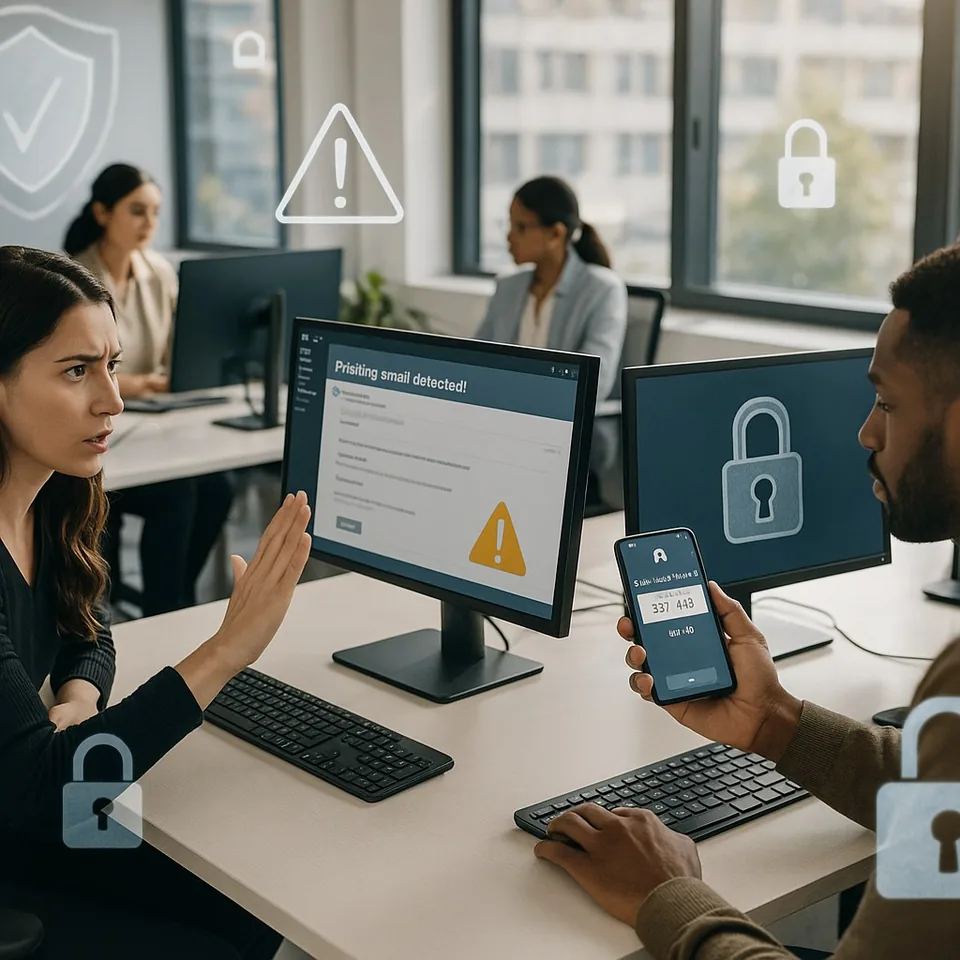
However, MFA only works well when users check the prompt. Never approve a sign-in request that you did not start. If you get an unexpected prompt, deny it and tell IT.
Sometimes, attackers send many prompts to tire users. This is called MFA fatigue. In that situation, the safe answer is simple: do not approve unknown prompts, and report them quickly.
Use Strong and Unique Passwords
Use a strong password for your work account. Also, do not reuse it on personal sites. If one personal site is breached, attackers may test the same password at work.
A password manager can help. It can create long passwords and store them safely. In addition, it helps users avoid typing passwords on fake pages.
Never share your password with anyone. IT should not need your password to support you. If someone asks for it, treat that request as a warning sign.
Be Careful With Trusted Devices
Microsoft 365 may ask if you want to stay signed in. This can be useful on a company laptop. However, it is not safe on a shared or public device.
Only trust devices that are assigned to you and protected by your company. Do not save passwords on public computers. Also, do not stay signed in on hotel, airport, shop, or shared office devices.
When you finish on a shared device, sign out fully. Then close the browser. This lowers the chance that someone else can reopen your session.
Watch for Phishing Signs
Phishing emails often push users to act fast. For example, they may say your mailbox is full, your password will expire, or a document needs urgent review. These messages are designed to reduce careful thinking.
Look for small warning signs. Check the sender address. Before you click, check the link as well. Also, be careful with unexpected attachments and emails that ask for payment changes.
If you are not sure, do not guess. Instead, ask IT or use your company reporting process. For more general advice, read this related guide: Cybersecurity Awareness: Safeguarding Your Business in the Digital Age.
Report Strange Activity Fast
Fast reporting can limit damage. Tell IT if you approved a strange MFA prompt. Also, report it if you typed your password on a page that now looks suspicious.
Report strange mailbox rules, missing emails, unknown sent messages, and sign-in alerts from other countries. These signs may point to account misuse. Therefore, early reporting matters.
Do not wait because you feel embarrassed. Security teams need early facts. A quick report can protect your account and the business.
What IT Teams Should Support
Users need clear support from IT. Good controls make safe habits easier. For example, IT can use Conditional Access to reduce risky sign-ins. Microsoft explains this control here: Microsoft Conditional Access overview.
IT teams should also review sign-in logs, risky users, mailbox rules, and MFA methods. In addition, they should guide users with simple steps, not complex jargon.
For more basic safety habits, see this related article: Cybersecurity Basics and Best Practices Simplified.
Simple Daily Checklist
- Check the sign-in page before entering your password.
- Do not approve MFA prompts you did not start.
- Use a strong and unique work password.
- Do not save work passwords on shared devices.
- Be careful with urgent emails and unknown links.
- Report suspicious activity quickly.
Final Thoughts
Microsoft 365 sign-in safety does not need to be hard. Small habits make a big difference. First, check the page. Next, check the prompt. Finally, report anything strange.
When users and IT teams work together, the whole business becomes safer. That is the real goal of good account protection. As a result, safe sign-in habits should become part of normal work.
CISA also shares simple public guidance on MFA here: CISA Secure Our World: Turn on MFA.