
Introduction: Microsoft 365 sign-in safety starts before login
Microsoft 365 sign-in safety is not just an IT setting. It is the path a person follows when a prompt, link, or login page feels wrong. That path must be short, calm, and easy to use.
A sign-in can open mail, files, meetings, chats, approvals, and business relationships. However, the costly event may start quietly. It may be a fake page, an MFA prompt, a hidden inbox rule, or a live session nobody checks.
This V2 playbook gives users a first safe action. It also gives IT a practical Microsoft 365 sign-in safety response: report, contain, inspect, recover, and keep proof.
Microsoft 365 sign-in safety risk chain
Attackers often mix a trusted brand, a pressure cue, and a fake sign-in page. Sometimes they capture a password. Sometimes they push a user to approve MFA. Therefore, Microsoft 365 sign-in safety must break the chain before trust is restored.
The goal is not perfect suspicion. The goal is a short route from “this looks wrong” to “the account is protected and the facts are clear.” That route helps users act fast without panic.
Microsoft 365 sign-in safety decision tree
Use the normal portal or approved app instead of an unexpected link. Check the domain and the context. Also, never approve an MFA request you did not start. If you entered a password or approved a prompt by mistake, report it immediately.
Use a password manager and phishing-resistant MFA where available. Strong controls help, but the safe route must still be easy for a busy user to follow.
What IT should make routine for Microsoft 365 sign-in safety
Use risk-based sign-in rules, strong MFA for key roles, device checks, and clear alerts for strange locations or impossible travel. In addition, review mailbox forwarding rules, app consent, MFA methods, recovery details, and sign-in logs when an account is in doubt.
Controls must be usable. If people cannot reach help quickly, they may keep testing the suspicious page. Therefore, the report route should be easier to find than the phishing link.
The first-hour account response
The first hour matters because Microsoft 365 sign-in safety depends on session control, not only password reset. Preserve the report. Note the account, time, device, message, and action. Then use the approved process to protect credentials and revoke active sessions.
Next, check MFA methods, app grants, mailbox rules, sent mail, deleted mail, and recovery details. Do not promise that one password change ends the event. A live session, app grant, or rule may still create risk.
Moeenism Insight: make reporting easier than risky clicking
Our recommendation is simple: make the report button, phone number, or support route easier to find than the risky message. Train people to report without shame. Also, tell them exactly what facts to include.
Early reporting gives IT more options. It also turns the user into part of the control, not the weak point. The strongest guidance is clear: do not approve an unknown prompt, do not type into a strange page, and tell the right team fast.
A 30-day Microsoft 365 sign-in safety plan
In week one, protect administrator and remote-access identities. Remove unused accounts. Publish the report route. In week two, review MFA methods, recovery information, app consent, and forwarding rules.
In week three, test a small suspicious sign-in exercise. In week four, review the evidence and remove one delay from the support path. Pair this plan with passkey safety, safe app consent, and QR warning signs.
Common mistakes
Teams often trust a logo, approve MFA to stop the prompt, ignore unknown devices, or treat a password reset as the full fix. Also, users may wait for certainty before reporting. That delay gives an attacker more time.
Good Microsoft 365 sign-in safety reduces the need for perfect judgement. It gives people a safe escape route and gives responders a clear checklist.
Scenario: an unexpected MFA prompt
A user gets an MFA prompt while reading a message. The user denies it and reports the event. IT reviews sign-ins, methods, sessions, mailbox rules, app grants, and recent messages. Then the account is protected through the approved process.
The value is speed. Because the playbook is known, the user does not wait, keep clicking, or hide a mistake. The team can act while evidence is still fresh.
Microsoft 365 sign-in safety checklist
- Use the known portal or approved app for sign-in.
- Deny and report prompts you did not start.
- Protect key roles with strong authentication and policy.
- Review sessions, tokens, forwarding rules, apps, and recovery methods.
- Keep the first-hour response route easy to find.
Key Takeaways
- Microsoft 365 sign-in safety protects more than email.
- MFA helps, but careless approval can still create risk.
- A password change may not end a session or app grant.
- Users and IT share the first response.
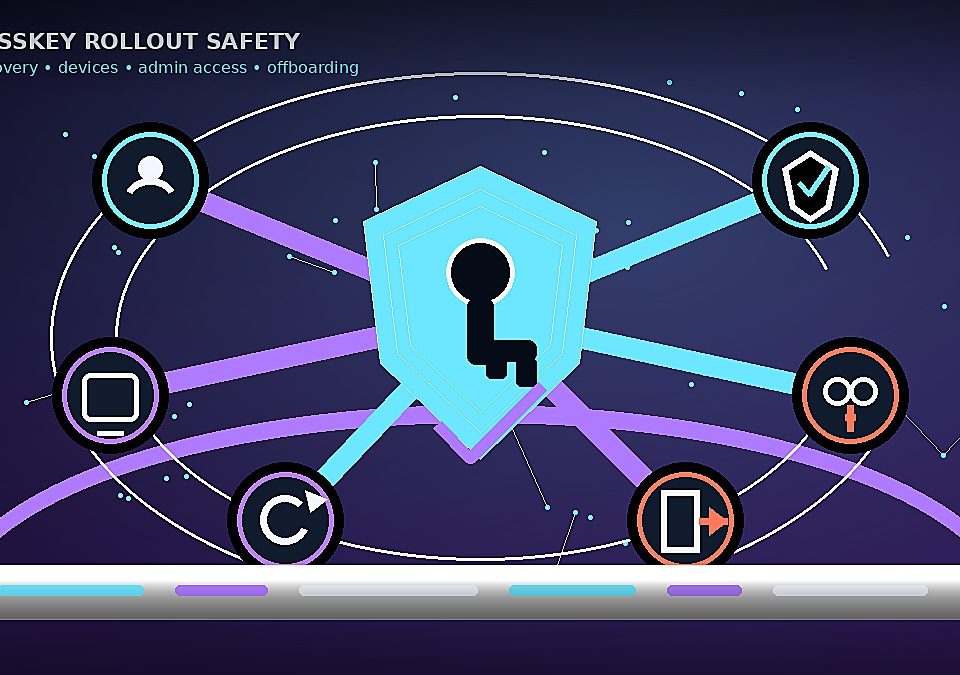
- Passkeys, device checks, and monitoring strengthen the sign-in path.
Conclusion
Microsoft 365 sign-in safety is a business control because one account can touch many workflows and relationships. The best guidance is short enough to use under pressure.
Protect the route, question the prompt, report early, and let qualified responders check the rest. In simple terms, the safest sign-in plan is the one a busy person can follow quickly.
Implementation roadmap: rehearse the first hour
Give users one known route for suspicious sign-ins, prompts, messages, and files. Run a small exercise that starts with an unexpected MFA request. Measure how fast the report arrives and whether the right owner is reached.
Use the result to remove friction. A control that people cannot use under pressure is weaker than it appears. Review the playbook after identity, device, app, or supplier changes.
Review questions for the first-hour playbook
Can a user report without signing in? Who can protect the account? Which logs, sessions, rules, grants, and devices need checking? What message should go to affected people?
Write the answers in plain language. Then test them with someone who did not help create the playbook. The test should separate immediate protection from later investigation.
- Keep emergency contacts outside the affected account.
- Record time, device, message, and action.
- Review the playbook after platform changes.
Frequently Asked Questions
What should I do after an unexpected MFA prompt?
Deny it, do not approve another prompt, and report it through the known route. The team may need to review sign-ins, sessions, and credentials.
Is MFA enough for Microsoft 365?
MFA is important, but Microsoft 365 sign-in safety also needs strong methods, device checks, session review, app-consent review, and response.
What if I entered my password on a fake page?
Report immediately and use the trusted portal or support process to protect the account. Do not wait for a suspicious email to appear.
Why check mailbox rules after a sign-in event?
Attackers may create forwarding or deletion rules to hide evidence or continue fraud. Review rules and other account changes as part of response.
Sources and Further Reading
Related Moeenism reading: passkey safety, safe app consent, safe app consent review, and QR code warning signs.