Passwords still create many avoidable risks for business teams. People reuse them, save them in unsafe places, and sometimes enter them on convincing fake login pages. Passkeys reduce that risk because they do not work like normal passwords. They use your device and a secure sign-in method, such as biometrics, PIN, or a security key, to prove that you are signing in from a trusted place.
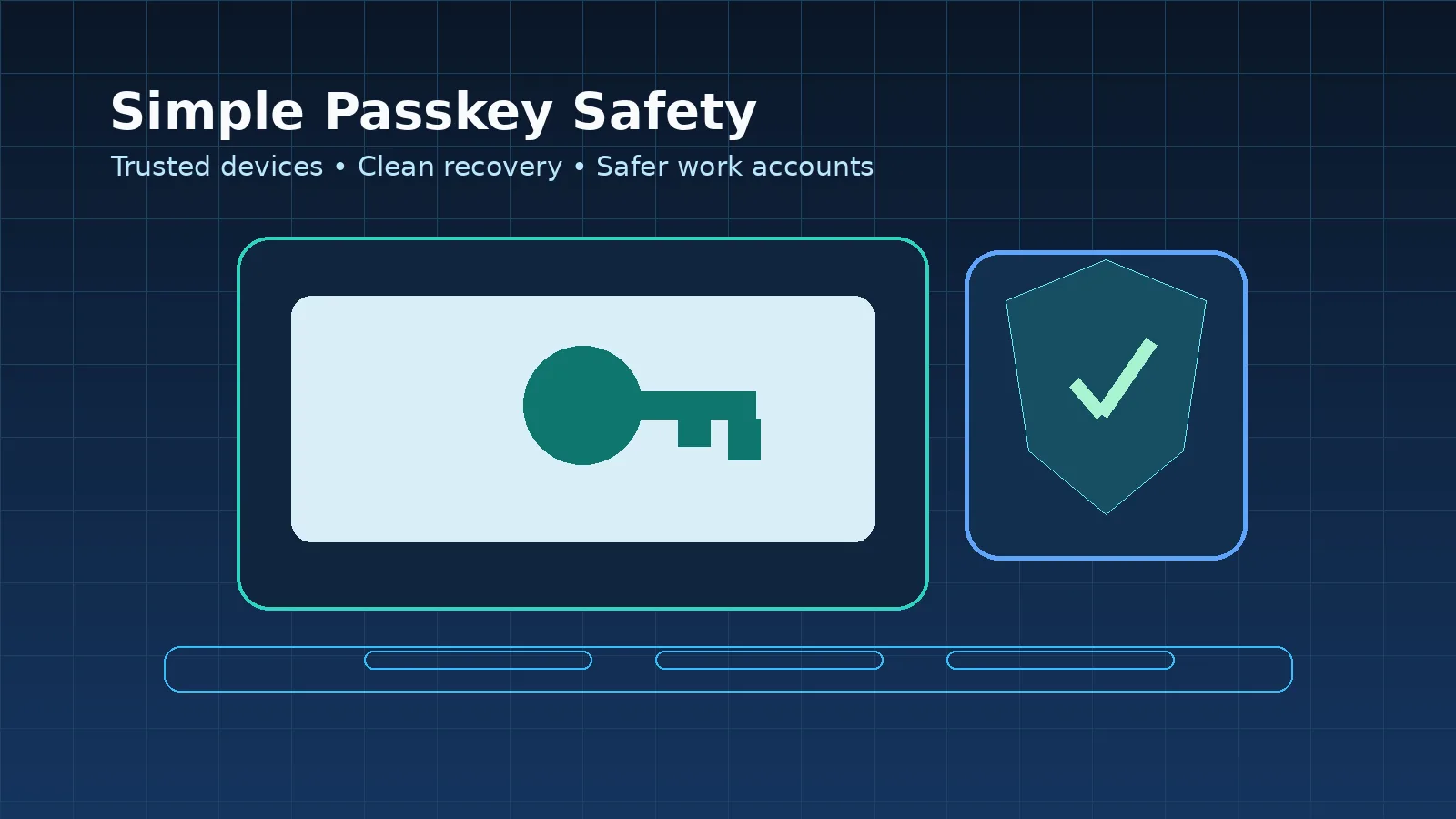
Passkeys are not magic, and they do not remove the need for discipline. They work best when people understand how to use them safely. They also work best when IT teams manage rollout, recovery, devices, and access reviews carefully. For Microsoft environments, Microsoft explains how organizations can enable passkeys and FIDO2 authentication in Microsoft Entra passkey guidance. CISA also recommends stronger, phishing-resistant MFA methods in its phishing-resistant MFA fact sheet.
What a Passkey Changes
A password can be typed, copied, guessed, reused, or stolen. A passkey is different. It is tied to a trusted device, authenticator, or security key. When a user signs in, the website or application asks the device to prove identity. The private part of the passkey stays protected on the device or authenticator and is not typed into a web page.
This helps reduce phishing risk. If a person visits a fake sign-in page, the passkey should not authenticate to the wrong website. That is one reason passkeys are useful for accounts such as Microsoft 365, identity portals, business systems, and admin access. They can support the same goal discussed in How to Prevent Costly Microsoft 365 Breaches Now: make account compromise harder before it becomes a business incident.
Where Teams Should Start
Start with accounts that carry higher risk. This includes administrators, finance users, HR users, IT staff, executives, and users who approve payments or handle sensitive business records. These accounts deserve stronger protection because one weak sign-in can create wider damage.
Next, review the sign-in journey. If passkeys are added without clear user guidance, people may become confused during login or recovery. A good rollout explains what will change, which device can be used, what to do when a phone is replaced, and how to contact IT if access fails.
Simple Rules for Safe Passkey Use
1. Keep recovery methods clean
A secure sign-in method can still fail if recovery options are weak. Old phone numbers, personal email accounts, unused devices, and shared recovery information create risk. Therefore, users should keep approved recovery methods updated through the proper company process. IT should review recovery settings during onboarding, role changes, and offboarding.
2. Do not approve sign-ins blindly
Passkeys reduce phishing, but users should still stay alert. If a login prompt appears at an unusual time, stop and check. If the request is unexpected, do not continue. Report it to IT instead of trying again repeatedly.
3. Protect the trusted device
A passkey depends on the device or authenticator that stores it. Keep work devices locked, updated, and protected. Do not lend unlocked devices to others. If a device is lost, stolen, or replaced, inform IT quickly so access can be reviewed and old methods can be removed.
4. Separate company and personal access
Company accounts should follow company-managed rules. Personal password managers, personal cloud accounts, and unmanaged devices should not become part of business sign-in unless the organization has approved that method. The same careful approach applies to connected apps and permissions, as explained in The Practical Guide to Safe App Consent.
5. Review access after vendor or role changes
Access should match the current business need. If a vendor project ends, if a staff member changes role, or if an admin account is no longer required, remove or reduce access. A passkey protects sign-in, but it does not decide whether the person should still have the permission. For this reason, teams should connect passkey rollout with the access-review habits covered in How to Keep Vendor Access Safe at Work.
Common Mistakes to Avoid
- Treating passkeys as a one-time IT setup instead of an ongoing access-control habit.
- Allowing too many recovery methods without review.
- Rolling out passkeys to users without a clear support process.
- Forgetting to remove old devices, old authenticators, or unused access.
- Assuming passkeys replace user awareness, access reviews, and reporting habits.
Practical Checklist for Business Teams
- Identify high-risk accounts before starting the rollout.
- Use passkeys or phishing-resistant MFA for administrators and sensitive roles first.
- Keep recovery methods accurate and approved.
- Explain what users should do if a device is lost or replaced.
- Review access after role changes, vendor work, and staff movement.
- Keep sign-in guidance simple and easy for employees to follow.
- Report unusual login prompts instead of approving them quickly.
Final Thoughts
Passkeys can make work accounts safer, especially when they protect important systems such as Microsoft 365, identity portals, finance tools, and admin consoles. However, the real value comes from a clean process: trusted devices, clear recovery steps, access reviews, and quick reporting when something looks wrong.
A stronger login method is only one part of security. The safer habit is to combine passkey safety with least privilege, simple user guidance, and regular review of who can access business systems.